
Get started with Claude Code and the docly CLI
Claude Code is an AI coding assistant that works in your terminal. The docly CLI gives it a local working copy of your Docly site, so it can read, change and diff your files before anything goes live. This post takes you from an empty machine to your first published change: install both tools, create one folder per project, sign in with !docly login, and settle into a daily loop where you stay in charge of what gets published.
What you need first
A Docly account with developer access. The docly CLI is for developers: the download page and every CLI command require it. Open the Docly cloud portal and look under Services. No Docly CLI item there means your account does not have developer access yet; ask whoever administers your Docly account to grant it.
A Windows PC. docly is a single
docly.exefor Windows x64. It brings its own runtime and needs no administrator rights.A Claude account that includes Claude Code — Pro, Max, Team, Enterprise or an Anthropic Console account. The free claude.ai plan does not include Claude Code.
Git for Windows (recommended). Claude Code uses Git Bash to run commands when it is installed. You do not need git to work with Docly; it is only the shell Claude Code runs in.
Step 1 — Install Claude Code
Open PowerShell (your prompt starts with PS C:\) and run Anthropic's installer:
irm https://claude.ai/install.ps1 | iexWhen it finishes, open a new terminal window and check that it answers:
claude --versionThe first time you start claude, it opens your browser so you can sign in to your Claude account. Claude Code keeps itself up to date. Other install options and troubleshooting are in Anthropic's setup guide.
Step 2 — Install the docly CLI
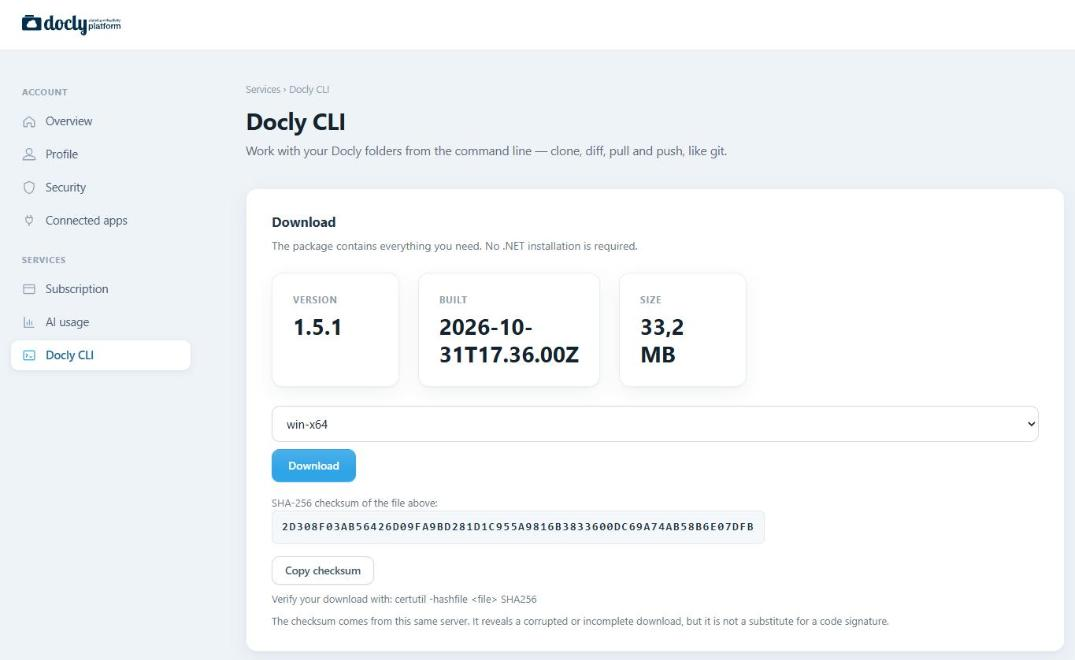
Services → Docly CLI in the Docly cloud portal. No Docly CLI item in the menu means the account has no developer access.
Open the Docly cloud portal and go to Services → Docly CLI (cloud.docly.net/cli). Download
docly-win-x64.zip.Unblock the ZIP before you extract it: right-click the file, choose Properties, tick Unblock and press OK. Windows marks downloaded files, and the mark follows every file you extract. Skip this and the installer shows a security warning that looks like a broken package.
Extract the ZIP and double-click Installer Docly CLI.cmd. It copies
docly.exeto%LOCALAPPDATA%\Programs\Doclyand adds that folder to your own PATH. Nothing is written outside your user profile.Open a new terminal — one that was already open does not see the new PATH — and check the version against the one on the download page:
docly --versiondocly tells you when a newer version is out. docly update installs it after asking you first.
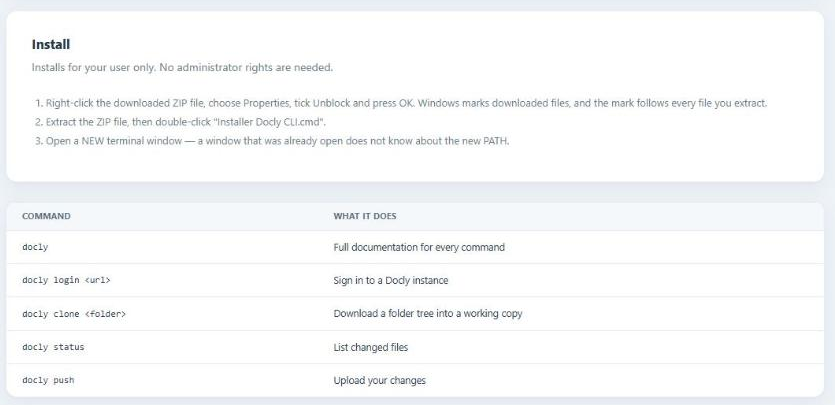
The same page repeats the install steps and lists the first commands.
Step 3 — One folder per project
Create a folder for each site or project you work on — anywhere you like, for example C:\Docly\example.com. Keep the projects as siblings:
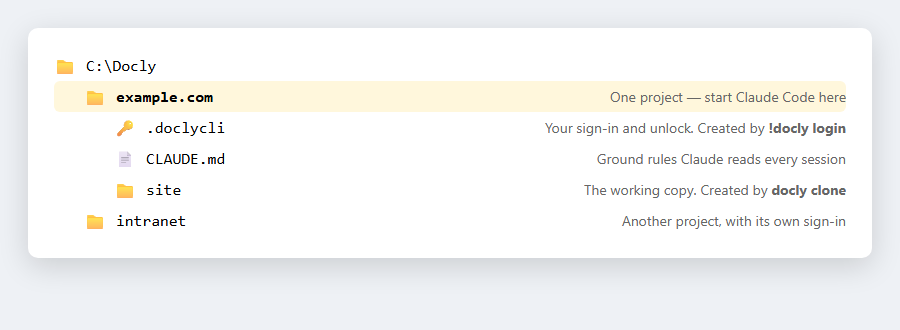
One folder per project. The sign-in lives in .doclycli inside it.
Why a folder each? docly keeps your sign-in in a .doclycli folder inside the folder where you signed in — the same idea as .git. Every docly command looks for it in the current folder and the folders above it, never sideways, and never in your home folder. So a project folder is a clean boundary: what you sign in to and unlock for one project does not leak into another, and a Claude Code session started in the folder works on that project only.
Add a short CLAUDE.md to the project folder. Claude Code reads it at the start of every session, so you do not have to repeat the ground rules:
# example.com

This folder holds a docly CLI working copy of the Docly site example.com, in ./site.

Before changing anything, read
https://developers.docly.net/Guidelines/KB/How-an-AI-agent-should-use-the-docly-CLI
and run `docly` for the command reference.

- Run every docly command from this folder or below it.
- Signing in and unlocking are mine. If a write is refused, stop and ask.
- Show me `docly diff` before you push anything.
Step 4 — Start Claude Code and sign in with !docly login
Open a terminal in the project folder and start Claude Code:
cd C:\Docly\example.com
claude
Then type this at the Claude Code prompt — with the exclamation mark first:
!docly loginThe ! matters. It runs the command in your own shell, in this folder, instead of asking Claude to do it. Signing in is yours to do, not the assistant's — and the output lands in the conversation, so Claude can see that you are signed in and where the session is stored.
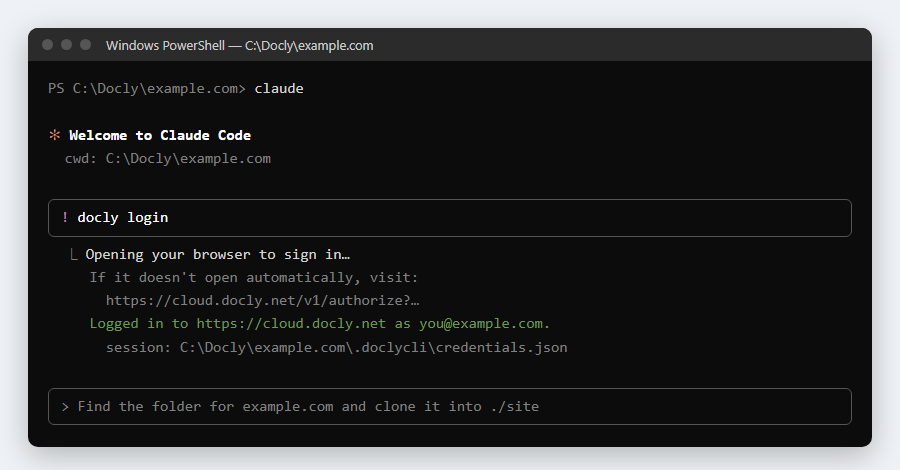
!docly login at the Claude Code prompt. The browser does the sign-in.
Your browser opens. Sign in to the Docly cloud as usual, with two-factor authentication. If the browser does not open, copy the link docly prints.
Back in the terminal docly prints
Logged in to https://cloud.docly.net as you@example.com.and the path of the session file.One sign-in reaches all your workspaces. The Docly cloud routes every command to the server that hosts the folder, so you never sign in per site. Use plain
docly login— not--direct.
Step 5 — Get a working copy
Now just ask, in plain language:
Find the folder for example.com and clone it into ./site.
Claude runs docly sites or docly find to locate the folder and docly clone to download it. From here on, every file of the site is a local file in site\, and nothing you or Claude change there is live until it is pushed.
Step 6 — The daily loop
Describe the change you want. Claude edits the files in the working copy, and you review before anything is published:
Step | Who | What happens |
|---|---|---|
1 | Claude |
|
2 | Claude | Edits the files in |
3 | Claude |
|
4 | You |
|
5 | Claude |
|
6 | Claude | Checks the result: the page itself, the site console ( |
7 | You |
|
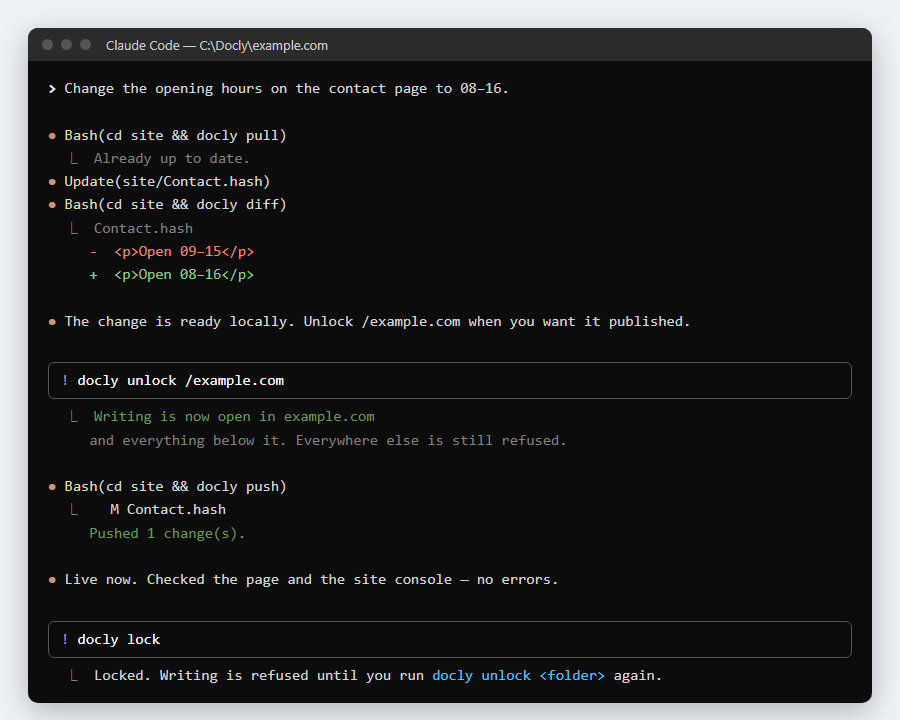
One change from request to live. Claude pulls, edits, diffs, pushes and verifies; you unlock and lock.
Why unlocking is yours. Every write is refused until someone opens a folder, and there is deliberately no flag to get around it. The unlock is the one control that does not depend on the assistant remembering an instruction: it decides how much can change. Open exactly the folder you cloned — not a wider one — or tell Claude in so many words which folder it may open.
Things worth knowing
Saving is publishing. There is no staging and no undo. Documents bound to a schema keep a version history (
docly history), but.hash,.js,.cssand.htmlfiles do not. That is why the diff comes first.«Not logged in» means the wrong folder, not a lost session. Start Claude Code in the project folder, or
cdback into it. Do not sign in again somewhere else.Paths that start with
/are rewritten by Git Bash into Windows paths. docly recognises this and says how to fix it; Claude handles it, but it explains an odd-looking error.A push that would replace a document is refused. If new content no longer fits the document's type, the server would create a new document with a new id. docly stops and lists the file instead.
No developer access? If the subscription that owns your workspace has AI apps (MCP) turned on, Claude can work with the workspace content over MCP instead — see MCP - connect an AI assistant.
Read next
The docly CLI — every command, the working-copy workflow and the exit codes
How an AI agent should use the docly CLI — point Claude here before its first change